Client onboarding
Getting your Mac ready
Getting your Mac Mini ready for remote access. This guide is for someone who just received a Mac Mini and needs to set it up so a technician can connect remotely. No technical experience required: follow each section in order and do not skip steps.
Part 1 — Unboxing and first boot
Start with the physical setup. Ethernet is preferred because it is more reliable for remote access, but WiFi works if that is all you have.
- Unbox the Mac Mini and power cord. Connect the power cord to the back of the Mac Mini and plug it into the wall.
- Connect your monitor with HDMI or USB-C. Make sure the monitor is on and set to the correct input, usually HDMI 1 or HDMI 2.
- Connect your USB keyboard and mouse to the USB ports on the back of the Mac Mini. Use a USB hub if needed.
- Connect internet. Ethernet to your router is the most reliable option; if you do not have Ethernet, you will join WiFi during macOS setup.
- Turn on the Mac Mini with the power button on the back. You should hear a chime and see the Apple logo.
Part 2 — Initial macOS setup
The Mac will walk you through a setup wizard. Complete the screens in order until you reach the Desktop.
- Select your country or region. Choose United States and click Continue.
- Select your keyboard layout. Leave it as US and click Continue.
- Connect to the internet if you are using WiFi. If Ethernet is plugged in, this screen may be skipped automatically.
- Sign in with your Apple ID. If you do not have one, choose Create New Apple ID and follow the prompts.
- Agree to the Terms and Conditions. Click Agree, then Agree again in the popup.
- Create your computer account. Use your full name, leave the automatic account name unless it looks wrong, choose a password you will remember, and add a password hint if helpful.
- Accept the remaining setup screens. iCloud, Screen Time, Siri, and appearance can be answered with Continue or Not Now; they do not affect server setup.
- Wait for setup to finish and reach the Desktop, which has a background image and a menu bar at the top.
Part 3 — Critical server settings
These settings are required for technician access. Do not skip any of them.
Find the local hostname
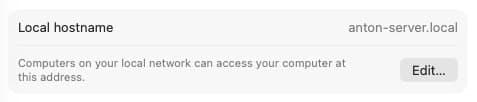
Open System Settings from the Apple logo in the top-left corner. Go to General, then Sharing. Scroll or look near the bottom of the Sharing settings for Local hostname. You will see an address ending in .local, like anton-server.local, with a note that computers on your local network can access your computer at this address. Write this local hostname down exactly.
Enable SSH: Remote Login
Stay in System Settings > General > Sharing. Scroll until you see Remote Login. Click the toggle so it turns blue and is ON.

A small window pops up. Under Allow access for, select All users, then click Done.
You will see a line like this:
ssh yourname@192.168.1.xEnable Screen Sharing
Still in System Settings > General > Sharing, find Screen Sharing. Click the toggle so it turns blue and is ON. You do not need to change any settings; just confirm the toggle is blue.
Prevent the Mac from sleeping
In System Settings, open Energy. If you do not see it, scroll down; it may be under a Hardware section. Set Turn display off after to Never. Turn ON Prevent your Mac from automatically sleeping when the display is off. If you see Put hard disks to sleep when possible, turn it OFF. If you see Wake for network access, turn it ON.
While you are still in Energy, find Start up automatically after a power failure and turn it ON. This ensures the Mac turns itself back on after a power outage.
Automatic login, if available
Automatic login lets the Mac log in automatically when it restarts, without anyone at the keyboard. In System Settings, open Users & Groups. Click Automatic login, select your username from the dropdown, enter your password, and click OK.
Part 4 — Install Tailscale
Tailscale creates a private, secure connection between your Mac and your technician. It is free and takes about 5 minutes.
- Open Safari from the Dock.
- Go to Download Tailscale.
- Click Download for Mac. It may send you to the Mac App Store. In the App Store, click Get and then Install; for a direct download, open the file and follow the install prompts.
- Open Tailscale from the menu bar at the top-right and click Log In. A browser window opens. Choose Sign in with Google or create a new Tailscale account with your email.
- Confirm your machine is connected. Click the Tailscale menu-bar icon again. You should see your Mac Mini with a green dot and a number like
100.x.x.x. That is your Tailscale IP.
Part 5 — Final checks
- Find your local IP address. Open System Settings > Network. Click Ethernet or WiFi, whichever you are using, and write down the IP address shown. It looks like
192.168.x.x. - Keep the Mac Mini plugged in. Mac Minis do not have a lid, so there is nothing to close; the power cord should stay connected at all times.
- Leave the Mac on. Do not turn it off. If someone turns it off, press the power button on the back to turn it back on.
Troubleshooting
The monitor shows nothing when I turn it on.
Make sure the monitor's input is set to the correct HDMI port. Try unplugging and re-plugging the HDMI cable.
I do not see Remote Login in Sharing.
Make sure you are in System Settings > General > Sharing. Scroll down the right side of the screen.
Tailscale will not log in.
Check that you are connected to the internet. Try closing and reopening Safari.
The Mac asks for a password after restarting.
Automatic login may not have been set correctly. Go back to Users & Groups and repeat the Automatic Login step.
I accidentally skipped a step.
Contact your technician. Do not guess or try to undo steps on your own.